User guide
How to use this accessible information solution to help people with vision loss live more independently.
To get started, you'll need to download the app and get some tags:

Which tags to use on what items
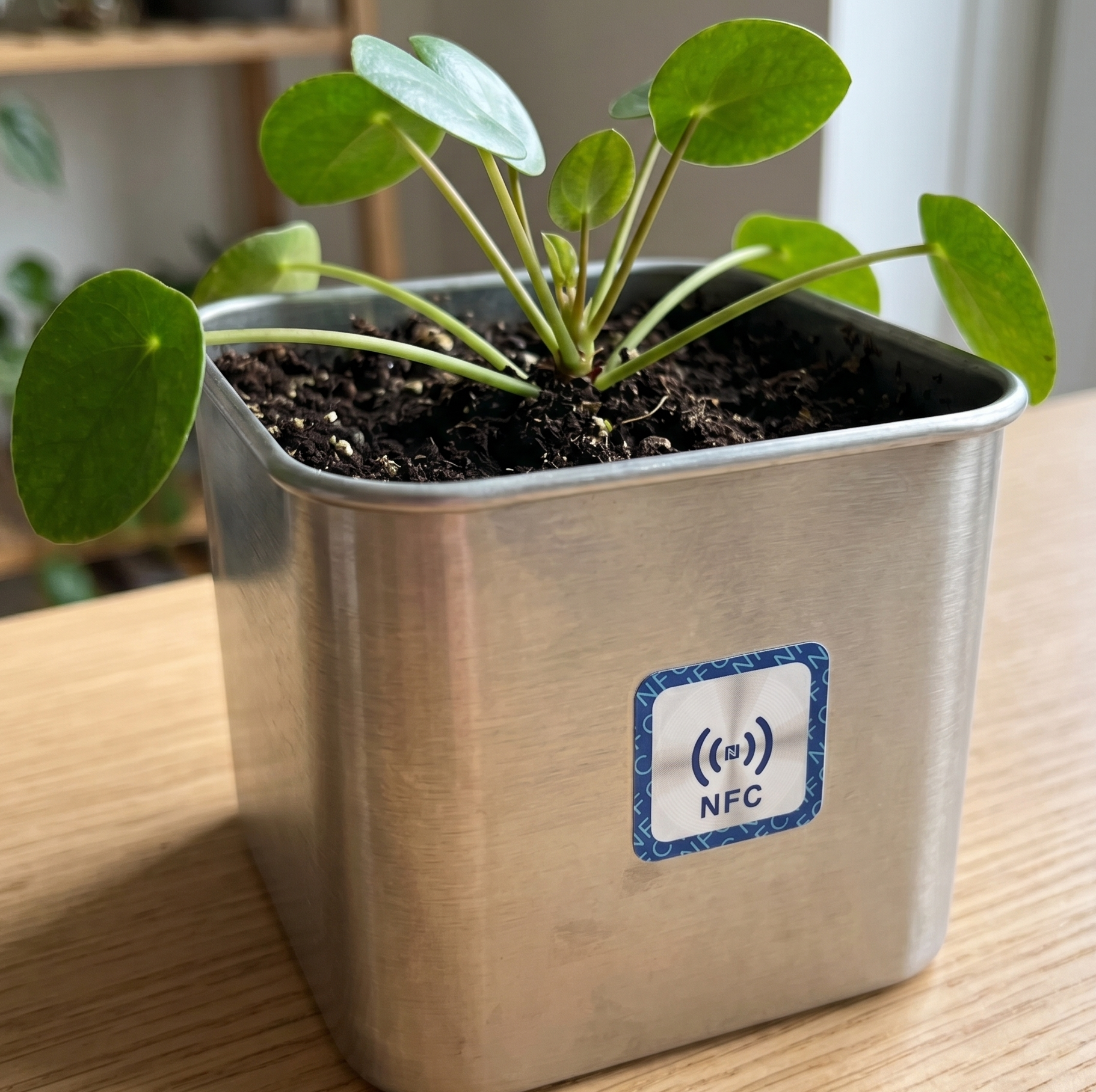
Square On-Metal
Use for metallic objects.
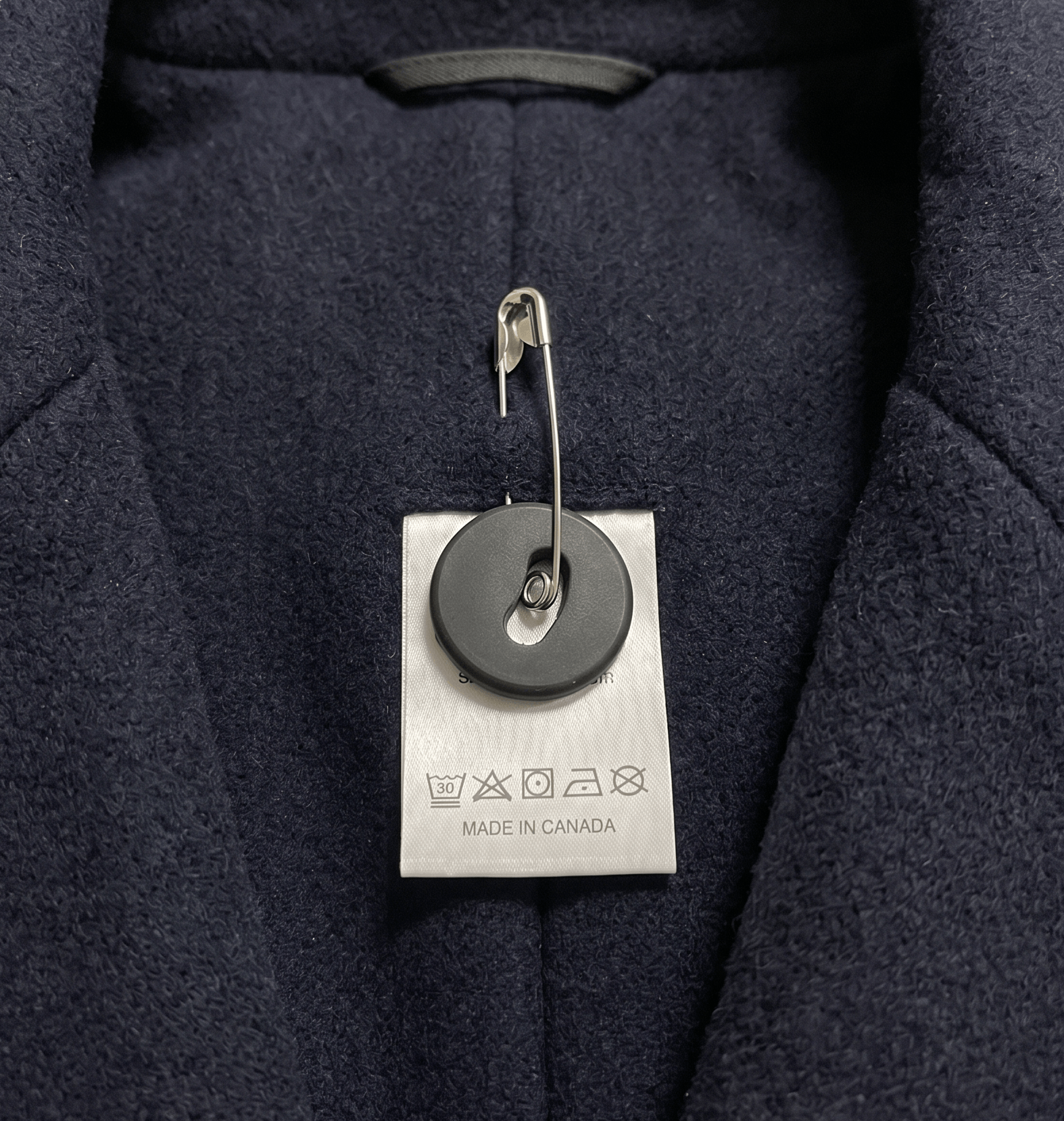
Sew-on Button
One-hole buttons can be attached with a safety pin, two-hole buttons can be sewn on
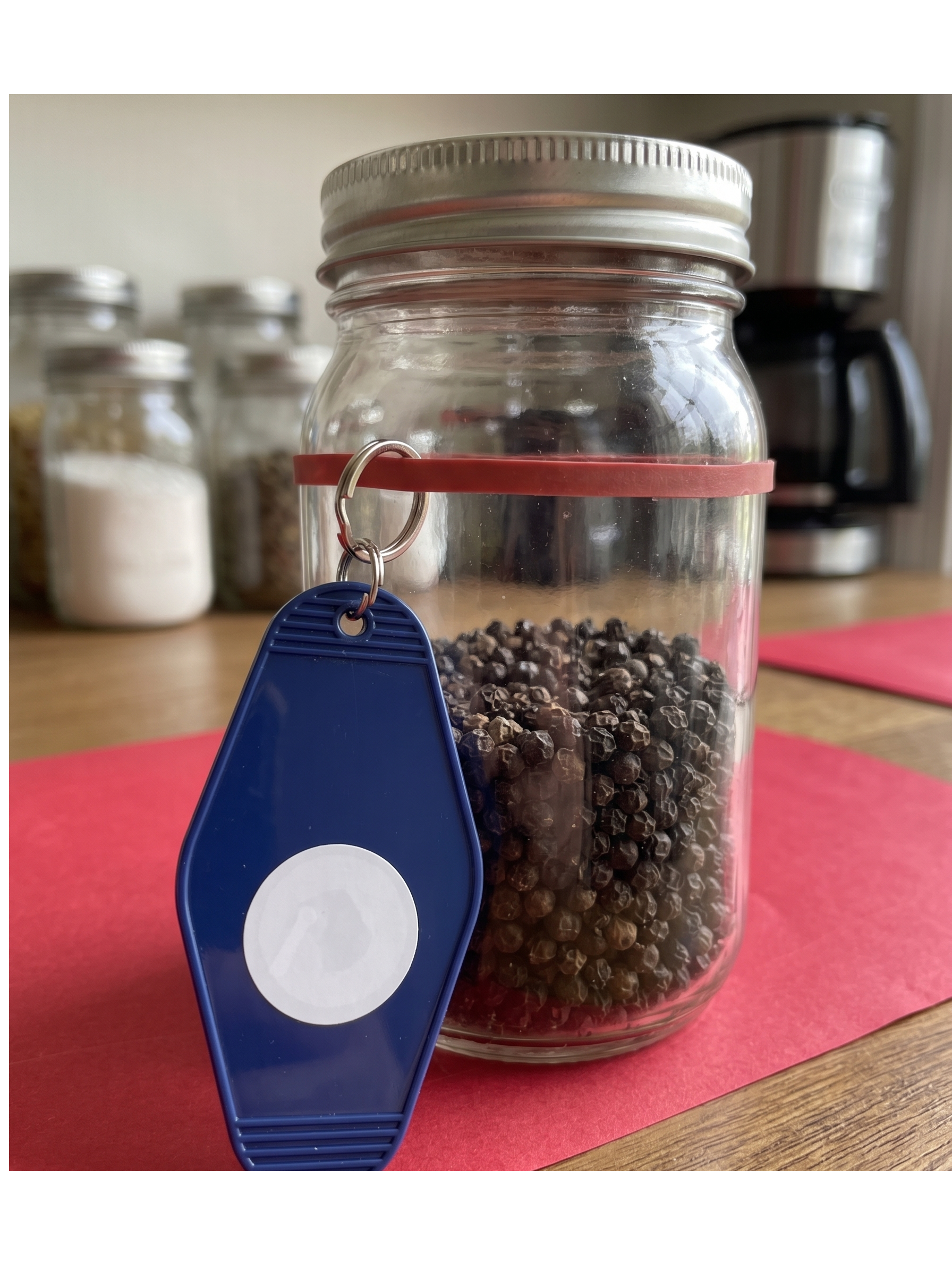
Tie-on Tag
Good for when reuse is needed such as for food containers.
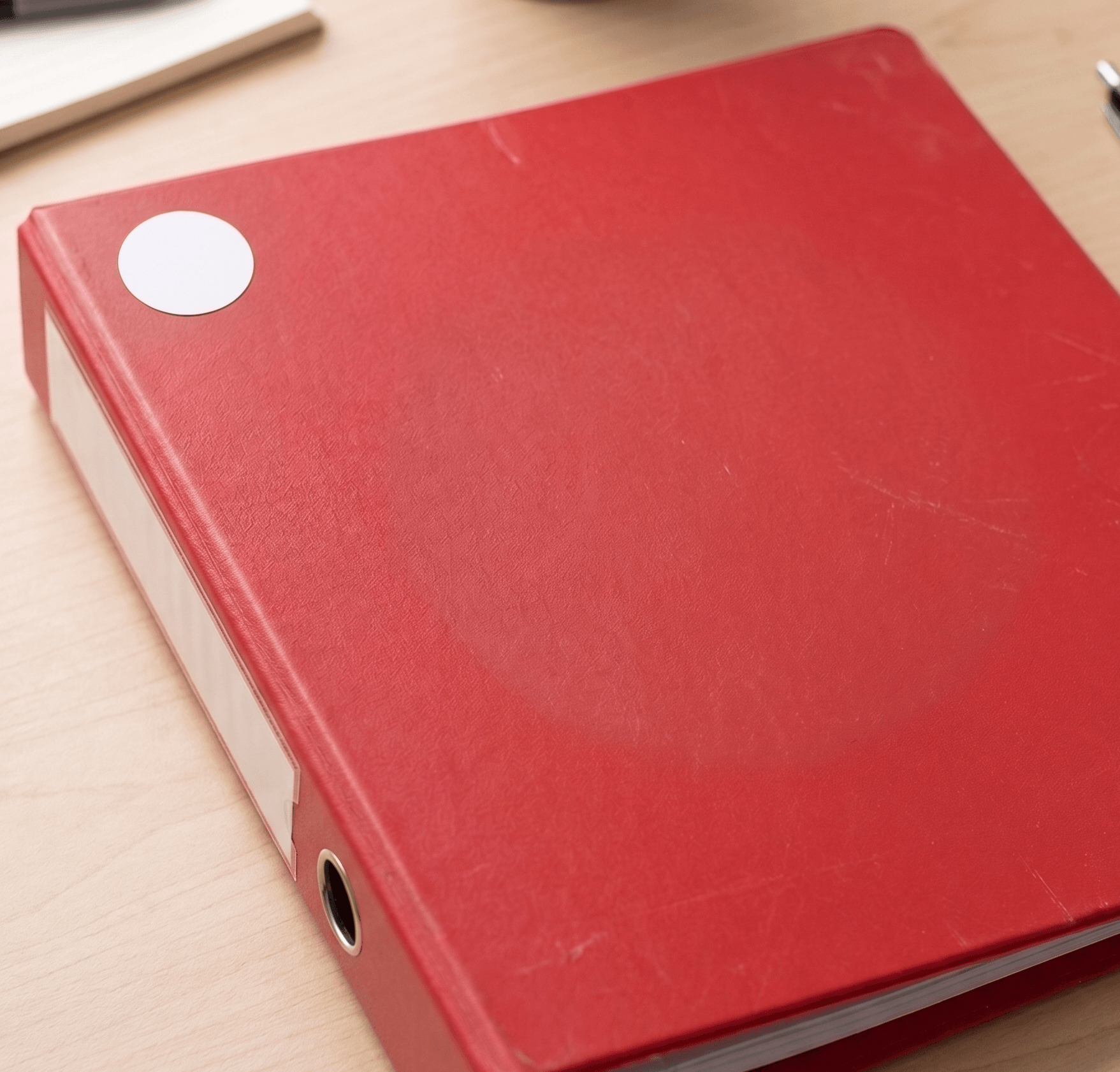
Round Sticker
For whatever else you can think of for example documents, plants, books.
These are just suggestions. The use of EveryTags is only limited by your imagination.
How to tag an item
Linking a physical object to your digital inventory takes less than a minute. The app is designed to guide you through four simple actions.
Enter a description
Type or dictate a description. You can also optionally take a photo of the item which will automatically suggest a description, category and colours. This is what you will hear announced every time you scan it later.
Select a category
Choose a type like Kitchen & Pantry. This tells the app what specific details to help you track, like expiry dates or dietary info.
Fill in more information (Optional)
You can add as much detail as you like in many different formats. This is good for expiry dates, washing instructions or anything that's helpful to you.
Associate with a tag
Put an EveryTag on the item you want to tag. Tap "Write to EveryTag" and touch your phone to your physical tag. The information is instantly locked to that tag.
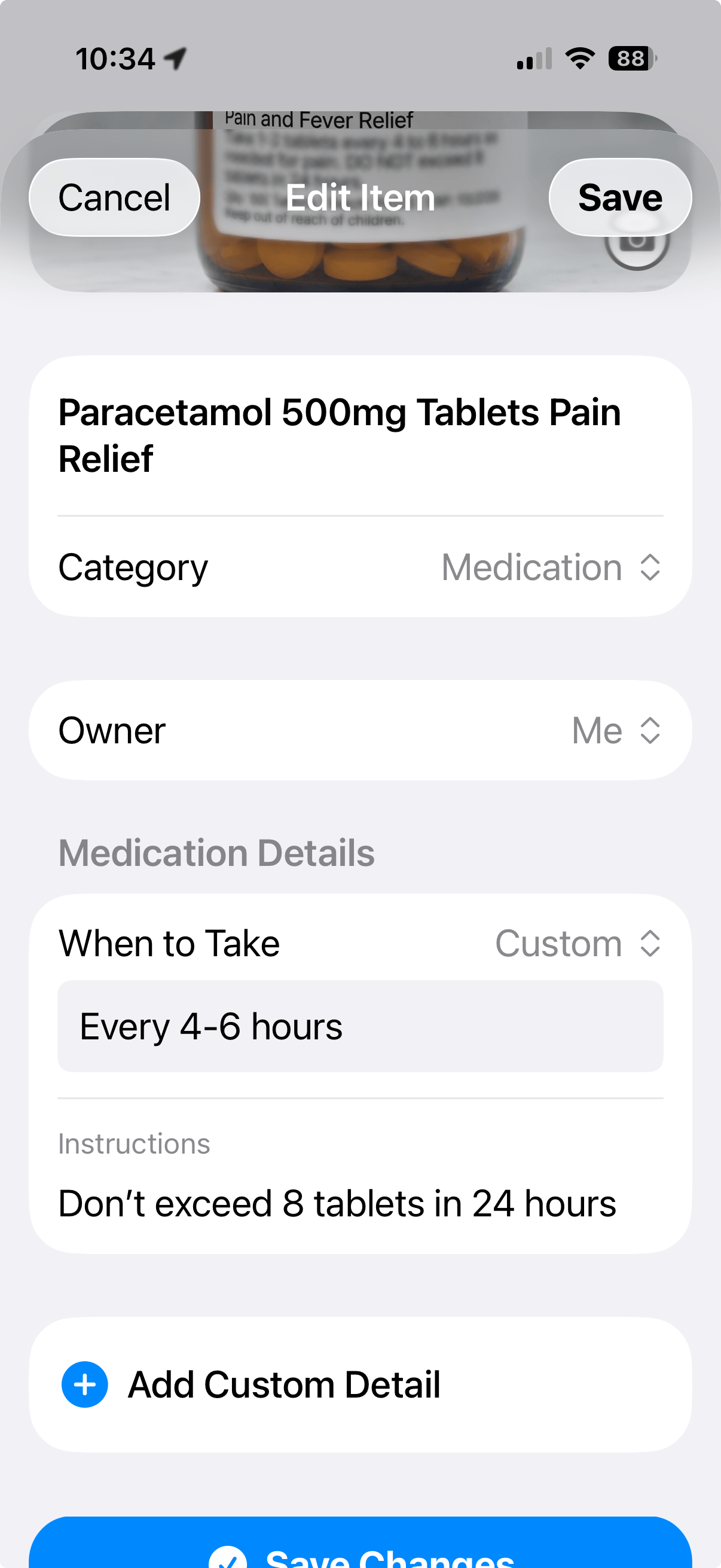
An example of the types of information you can add in the app.
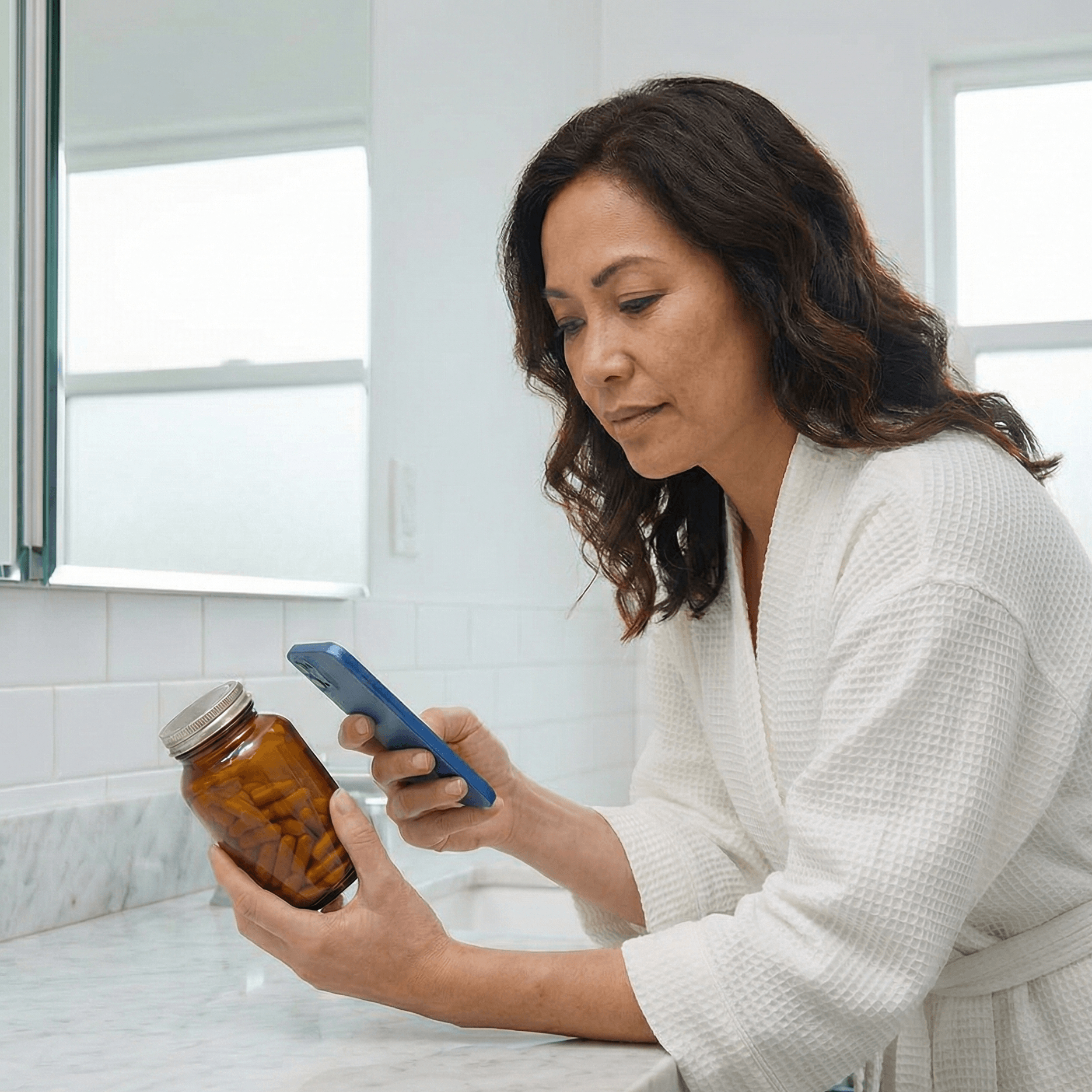
Scan the item with the phone to add or read an item.
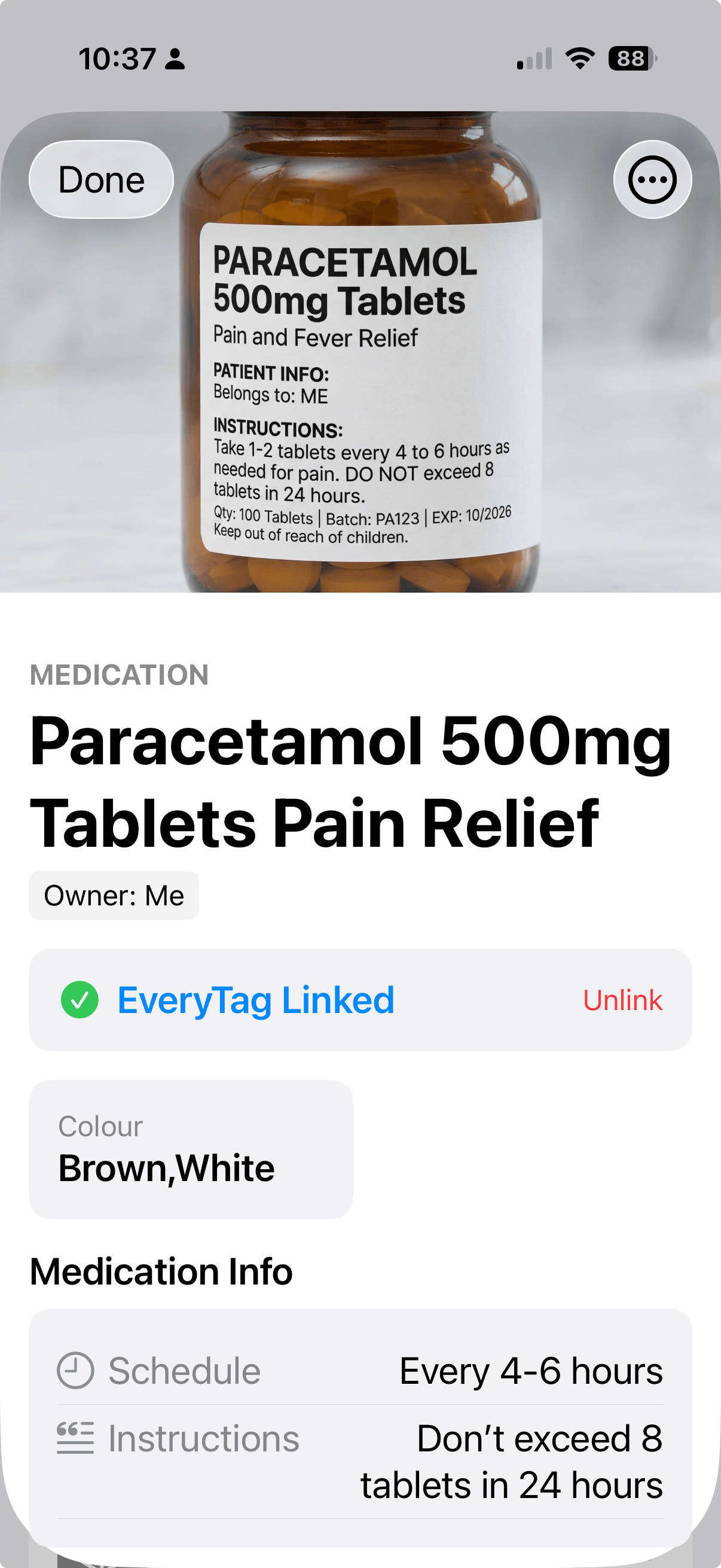
What you see and/or hear in the app after scanning a tag.
How to read an item
Scanning is as simple as it gets. Just open the app, tap "Scan item" and tap your iPhone to any of your tags.
The app will immediately announce the item's name and details via VoiceOver, and the screen will update to show you all the information you previously added, confirmed by the 'EveryTag Linked' status shown in the screenshot.
Ready to get organised?
Detailed user guide
In-depth instructions and references covering every feature in Tag Everything.
Important safety warning
WARNING: The photo tool uses AI to read labels, and it should not be used for life-critical scenarios because it is not perfect.
If a photo is blurry, faded, or poorly lit, the AI might record the information incorrectly. Always verify critical safety, allergy, and medical information manually.
Basics
How to add an item
To add an item, go to the 'Inventory' tab and activate the 'Add Item' button at the top of the screen. When you are finished filling out the details, activate the 'Write to EveryTag' button at the very bottom of the screen to link it to a physical tag.
Input methods: You have three ways to input information when creating a new item:
- Text: Type the details manually using your keyboard.
- Dictate: Use the microphone button on your iOS keyboard to speak the details.
- Photo: Activate the 'Take photo to prefill item description, category and colour' button next to the title. The AI will analyse the image and automatically set up the basics for you, including a detailed visual description.
Categories and specific fields: Selecting a category (like Clothing or Kitchen & Pantry) helps you organise and search for items in the app. These fields differ depending on the category you choose. For example, if you choose the Kitchen & Pantry category, the app will ask for an expiry date. If you choose Clothing, it will ask for care instructions.
Custom fields: You can add whatever you want! At the bottom of an item's details, activate 'Add Custom Detail'. Supported formats include standard text, web links, dates, times, and phone numbers.
How to read an item
Go to the 'Read' tab and double-tap anywhere on the screen to open the scanner. Hold the top edge of your iPhone against the EveryTag to hear what the item is.
How to delete an item
Open the item in your inventory, activate the 'Menu' button, and select 'Delete'. This permanently removes it from your inventory.
How to unlink an item from a tag
If you want to unlink an item from a tag but keep it in your inventory: Open the item, activate the 'EveryTag Linked' button, and choose 'Unlink'. The tag is now blank and ready to be used on something else.
Siri & voice commands
Scanning tags
You can ask Siri to open the app and instantly start scanning. Try saying:
- "Hey Siri, scan a tag with Tag Everything"
- "Hey Siri, read a tag using Tag Everything"
- "Hey Siri, open Tag Everything scanner"
Adding new items
To jump straight to the Add Item screen, try saying:
- "Hey Siri, add a tag in Tag Everything"
- "Hey Siri, create a new item in Tag Everything"
Learning about an item
If you know the name of an item you've saved, you can ask Siri for details without needing to scan it. Siri will look it up in your inventory and tell you about it. Try saying:
- "Hey Siri, ask Tag Everything about [Item Name]"
- "Hey Siri, look up an item in Tag Everything"
Opening your inventory
To quickly open your full list of saved items, try saying:
- "Hey Siri, open my inventory in Tag Everything"
- "Hey Siri, show me my items in Tag Everything"
Advanced features
Washing and care instructions
When adding a piece of clothing, navigate down past the category selection to find the 'Take washing instructions photo' button. Activate it to snap a picture of the garment's care label. The AI will translate those confusing symbols and automatically fill out the detailed care fields for you, including: material, sorting advice, general washing and drying, wash cycle, wash temperature, bleach, drying method, iron heat, and dry clean settings.
Nutritional info and expiry dates
When adding a pantry item, navigate down to the 'Kitchen & Pantry Details' section and activate the 'Prefill with photo' button. Snap a picture of the food label or nutrition panel. The AI will extract the text and automatically fill out your dietary info, certifications, best before date, and nutritional facts. You can use this button multiple times to scan different sides of the packaging and build up the details!
Clothes matching suggestions (beta)
When you add clothing items to your inventory, the AI analyses their colours and styles. When you view a piece of clothing, navigate through the item details to find automatically generated outfit suggestions pulled from the rest of your wardrobe.
Household cleaning and chemicals
When adding a cleaning product, navigate down to the 'Ingredients & Contents' field and activate the 'Analyse' button next to it. Snap a picture of the warning label on the bottle. The AI will extract the text and fill out the safety fields, summarising active ingredients, best before dates, and crucial safety warnings (like Poison or Flammable).
Using Tag Everything across multiple devices
Tag Everything stores information about items in your iCloud storage. If you change iPhones or use multiple iPhone devices, your inventory data will automatically sync.
Reusing tags
You can reuse tags many times if the purpose of it changes. You can delete or update the information associated with the tag. The information is not stored on the tag itself so it's easy to update in the app.
How to share items
Open an item in your inventory, activate the 'Menu' button, and select 'Share'. You can send the item directly to another iPhone via AirDrop or iMessage. The person you're sharing with will need to have the Tag Everything app installed.
Configuration & bulk updates
Custom fields & categories
Preset Custom Fields: If you find yourself repeatedly creating the same custom details (like 'Warranty Expiry' or 'Serial Number'), you can save them as Presets. Go to 'Advanced Settings' in your inventory and select 'Preset Custom Fields'. Here, you can define reusable fields and build custom dropdown menus. Once saved, these can be quickly added to any item with a single tap.
Manage Categories: You aren't limited to default categories! Go to 'Advanced Settings' -> 'Manage Categories' to build your own. When you create a custom category, you can map specific standard fields (like Location) and any of your Custom Preset Fields to it so they automatically appear on the 'Add Item' screen.
Bulk updates & preset groups
The Bulk Update Tool: Need to update the status, location, or custom fields of multiple items at once? Go to 'Advanced Settings' -> 'Bulk Update'. Choose 'Custom Fields', add the fields you want to change, and type in the new values. Then activate 'Begin Scanning'. Tap your phone to each tag back-to-back to update them all instantly.
Bulk Preset Groups: If you frequently update the exact same combination of fields (for example, checking items in and out of a specific 'Location' with a specific 'Status'), you can save that combination as a Group. Go to 'Advanced Settings' -> 'Manage Bulk Preset Sets' and create a new group. Next time you use the Bulk Update tool, simply select that Preset Group from the menu.
Ideas
Pantry items
Stick a round sticker tag onto identical jars of herbs and spices. When adding them to the app, use the 'Kitchen & Pantry' category. Let the AI fill in the dietary info and best before dates, so you can easily tell what's in the jar without taking the lid off!
Wardrobe management
Pin or sew our washable button tags into your jackets and shirts. Use the 'Clothing' category. The AI will store all those confusing ironing and washing instructions, and it'll even suggest matching outfits based on the colours you log.
Pot plants
Stick an EveryTag on your pot plant. When setting up the item, use the Custom Blocks feature to add a 'Date' block for when you last watered it, and a 'Text' block to remind you how much sunlight it needs.
Cable management
Loop tie-on tags around the messy cords behind your telly or desk. Add a quick custom 'Text' block explaining exactly what the cord connects to (like 'Wi-Fi router power'), so you never unplug the wrong thing again.
Pet care
Stick round tags on dog food bins or pet medications. Use the custom 'Time' block to track their daily feeding schedule, and add a 'Text' block to record exactly how many scoops they get for dinner.
Document archiving
Stick round sticker tags on the corner of manila folders. Use the 'Documents' category to log a 'Created Date' and a brief text description (like "2026 Tax Receipts"). You'll instantly know what's inside without having to pull all the papers out.
Fridge leftovers
Use a round sticker or tie-on tag on your reusable plastic containers. Log them under the 'Kitchen & Pantry' category to quickly set a 'Best Before' date. You can reuse the tag by editing the item details if the contents change.
The medicine cabinet
Stick round tags on the lids of your pill bottles. Use the 'Medication' category to quickly log the schedule (like 'Twice daily') and specific instructions so you don't mix up identical bottles.
Makeup & cosmetics
Stick a round tag on the bottom of foundation bottles or lipsticks. Add a custom 'Date' block to track when you opened it (so you know when it expires), and list the exact shade name in the description.
Hardware & tools
Stick our square on-metal tags onto the tins of screws, nails, and bolts out in the shed. (Standard NFC stickers don't work well on metal, which is why the square tags are perfect for toolboxes!)
Board games
Stick a round tag on the corner of board game boxes. You can note the number of pieces required to play, and even add a custom 'Link' block that points straight to an audio version of the rulebook online.
Spare keys
Loop a tie-on tag to the spare keys floating around in your junk drawer. A quick text description will tell you exactly which padlock, safe, or back door they open.
Help, feedback and support
If you have any questions, feedback, or need help with your tags, send an email to hello@tageverything.app.